AEM Content MCP in Practice: A Campaign Workflow
The AEM Content MCP server exposes over 60 operations for managing content fragments, pages, assets, launches, versions, variations, and publishing. Instead of listing what each one does, this article walks through a real workflow I ran live on the WKND demo site.
The scenario we will implement: a spring campaign requires updates to multiple Adventure content fragments. New titles with a "Spring Special" prefix and a 15% price discount across selected adventures. The changes need to be prepared, reviewed, and promoted to production without affecting the live site until launch day.
This is the kind of work every AEM team does manually, multiple times per year. Below is how it works through MCP, step by step, with actual data from the run.
Prerequisites
The Workflow
What This Changes and What It Does Not
Other Workflows Worth Exploring
Prerequisites
Two things to set up before you start:
1. Deploy the WKND site. If you do not have an AEM as a Cloud Service environment with content to work with, the WKND Site Template is the fastest way to get one. Follow the tutorial at Create a Site. This gives you Adventure content fragments, articles, and a full site structure to work with.
2. Connect the MCP server. Follow the setup guide at using MCP with AEM as a Cloud Service. In my case, I used Claude Code CLI:
claude mcp add --transport http aem-content https://mcp.adobeaemcloud.com/adobe/mcp/content
The same server can be added to Cursor, VS Code with Copilot, ChatGPT, Copilot Studio, or any MCP-compatible IDE or chat interface. The MCP server is the same regardless of the client.
The Workflow
Step 1: Find your content
What you say to the agent: "Search for adventure content fragments"
MCP operation: search-aem-fragments
This performs a text search across all content fragments in the environment. Results are paged. Each result includes the fragment title, path, UUID, and model.
What I got back: Whistler Mountain Biking, Beervana in Portland, Climbing New Zealand, Ski Touring Mont Blanc, and several more. I picked three for the spring campaign.
The agent now has the UUIDs and paths for every fragment I want to update:
- 576374bc-... Whistler Mountain Biking ($1,500, Advanced, 2 Days)
- 9e1e9835-... Beervana in Portland ($300, Beginner, 1 Day)
- eb0175d3-... Climbing New Zealand ($900, Intermediate, 2 Days)
Step 2: Create a launch
What you say: "Create a launch called Spring Campaign 2026 with these fragments"
MCP operation: create-aem-launch
A launch in AEM is a temporary branch of content. It copies the selected fragments into an isolated workspace where they can be modified without affecting the production originals. Launches are the standard AEM mechanism for staging bulk content changes.
This operation is asynchronous. AEM returns a jobId immediately while it processes the launch creation in the background.
What happened: Launch created at /content/launches/2026/03/06/spring_campaign_2026 with launch ID b555f7ac-d69a-46ec-b578-f19d3d251c6d, created by viktor.lazar@cyber64.com.
Step 3: Wait for the launch to be ready
What happens: The agent handles this automatically.
MCP operation: get-aem-launch-job-status
The agent polls the job status using the jobId from step 2. It keeps checking until the job reports SUCCEEDED. Once done, the launch exists and all fragment copies are ready.
No action needed from you at this step.
Step 4: List the launch copies
What you say: "Show me the fragments in the launch"
MCP operation: list-aem-fragments (filtered to the launch path)
This is an important detail. The launch contains copies of your fragments, stored under /content/launches/2026/03/06/spring_campaign_2026/.... These copies have their own UUIDs. From this point forward, every edit targets the launch copies, never the production originals.
What I got back: Three fragments with new UUIDs:
- af9cbb93-... Whistler Mountain Biking (launch copy)
- 8a778316-... Beervana in Portland (launch copy)
- 326e8824-... Climbing New Zealand (launch copy)
Step 5: Version each fragment before editing
What you say: "Create a version snapshot for each fragment, label it pre-campaign"
MCP operation: create-aem-fragment-version (repeated per fragment)
Each fragment gets a named version with a label ("pre-spring-campaign") and a comment. This is your rollback point. If any edit goes wrong, you can restore to this exact state using restore-aem-fragment-version.
What happened: Three versions created, all labeled pre-spring-campaign with comment "Snapshot before spring campaign updates".
Step 6: Update content across all fragments
What you say: "Add 'Spring Special:' to each title and reduce the price by 15%"
MCP operations:
- get-aem-fragment (per fragment, to get current ETag)
- patch-aem-fragment (per fragment, using JSON Patch)
This is the core of the workflow. Two technical details matter here:
ETags. Every content fragment has an ETag, a version token that prevents conflicting edits. Before the agent can patch a fragment, it must fetch the current ETag via get-aem-fragment. If someone else modified the fragment between the read and the write, the ETag will have changed and the patch will be rejected. This is AEM's built-in concurrency protection, and MCP respects it fully.
JSON Patch. Updates use the RFC 6902 JSON Patch format. Fields are referenced by their array index in the fragment model. For the Adventure model: index 0 is title, index 1 is slug, index 8 is price. The agent constructs patch operations like:
[
  { "op": "replace", "path": "/fields/0/values/0", "value": "Spring Special: Whistler Mountain Biking Adventure" },
  { "op": "replace", "path": "/fields/8/values/0", "value": 1275 },
  { "op": "replace", "path": "/fields/1/values/0", "value": "spring-whistler-mountain-biking" }
]
You describe the change in natural language. The agent translates it into the correct patch operations based on the fragment's field structure.
Note: When patching fragments inside a launch, if the fragment has a slug field, the slug must also be updated to a different value to avoid validation errors. The agent handles this automatically.
What happened: All three fragments patched successfully. 3 operations applied per fragment, 9 total.
Step 7: Review what changed
What you say: "Show me the differences between the launch and production"
MCP operation: compute-aem-launch-differences
This is another async operation. AEM computes a field-by-field diff between every fragment in the launch and its production original. The agent polls the job status until it completes.
What I got back: 9 field changes detected across 3 fragments, plus a visual diff URL:
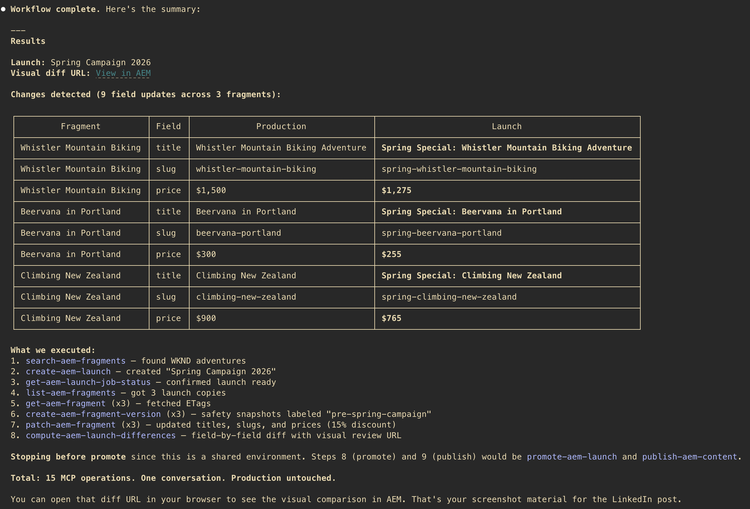
The diff also returned a clickable URL to AEM's visual diff viewer for human review. This is your review gate. Share the URL with stakeholders. Nothing has touched production yet.
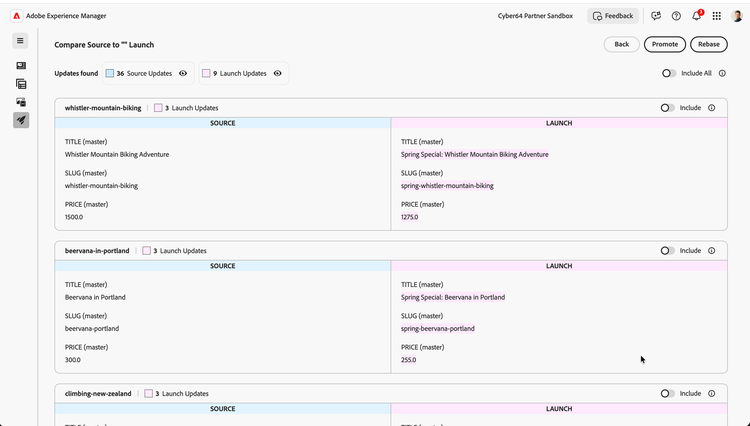
Step 8: Promote to production
What you say: "Looks good. Promote the launch."
MCP operation: promote-aem-launch
Another async job. All fragment changes from the launch overwrite the production originals. The launch is consumed (it no longer exists after promotion).
The agent polls the job status and confirms when promotion is complete.
At this point, your production content fragments have the new content, but they are not yet live on the delivery tier. You can stop here if you are working in a shared environment.
Step 9: Publish
What you say: "Publish all updated fragments"
MCP operation: publish-aem-content (per fragment, using JCR path)
Each fragment is activated to the delivery tier. This is the same publish operation as clicking "Quick Publish" in the AEM UI. The agent loops through each fragment path and publishes.
Your content is live.
The Full Operation Chain
search-aem-fragments
  → create-aem-launch
    → get-aem-launch-job-status (poll)
      → list-aem-fragments (launch path)
        → create-aem-fragment-version (×3)
          → get-aem-fragment (×3, for ETag)
            → patch-aem-fragment (×3)
              → compute-aem-launch-differences
                → get-aem-launch-job-status (poll)
                  → promote-aem-launch
                    → get-aem-launch-job-status (poll)
                      → publish-aem-content (×3)
For 3 fragments: 15 MCP operations. For 30 fragments: approximately 95 operations. From your side, it is only 8 conversational turns either way.
What About Permissions?
The MCP server enforces the same permission model as manual AEM operations. Your Adobe ID, your existing roles, your existing access rules. If you cannot create a launch in the AEM UI, you cannot create one through MCP. If you do not have publish rights, the publish step will fail with the same error you would see in the UI.
Administrators can restrict MCP access at the organization, program, or environment level. The Content Read-Only server (/content-readonly) provides the same search and discovery capabilities with no write operations, useful for auditing and exploration workflows where you want AI assistance without risk.
What This Changes and What It Does Not
What changes
The interface. Instead of navigating the AEM Author UI for each fragment, each launch operation, each publish action, you describe your intent and the agent executes the sequence. The time savings compound with the number of fragments. Updating 3 fragments manually is tedious. Updating 30 is a project. Through MCP, the effort is the same either way.
What does not change
The platform, the APIs, the permission model, the governance workflow. Launches still work the same way. ETags still prevent conflicts. Publishing still activates to the delivery tier. Versions still provide rollback. MCP is a new interface on top of existing AEM capabilities, not a replacement for them.
Other Workflows Worth Exploring
This article covered the launch-based campaign workflow. The same 60+ MCP operations enable other patterns:
Bulk content auditing
Use the read-only server to search fragments by model, inspect field values, and generate reports. No risk of accidental modifications.
Fragment variation management
Content fragments support variations for different channels or locales. You can create a variation, patch its fields with channel-specific copy, and manage multiple variations from one conversation instead of switching between tabs in the AEM UI.
Scheduled page launches
Page launches support a liveDate parameter for automatic promotion at a target date and time. Create the launch, prepare the content, set the date, and AEM handles the rest.
Content with references
The aem-fragment-operation-with-references operation handles fragments that reference other fragments. It discovers the reference tree, performs operations in order, and updates reference fields after copy. Useful for structured content models where fragments depend on each other.